
Starting the new financial year
The end of the year means a very busy period for many. In addition to the hustle and bustle of the holidays, you also have to make sure that your financial accounting is in order. In this document we describe the steps you need to take before you create your first invoices of the new year in ReflexBlue.
To start your new year well, you can take the following steps:
- First complete your current year by creating and exporting all invoices for that year.
- Adjust your settings in ReflexBlue.
- Adjust your settings in your accounting package.
- Create invoices for the new year.
Complete current year
You can also still complete your previous year in January of the new year. In order to complete your previous year, it is important that you first have processed all invoices from the previous year before you start creating invoices for the new year.
Before you start the new financial year in your accounting package, you must first have exported all journal entries for invoices from the previous year.
If your accounting package explicitly requires a set financial year, ReflexBlue uses the set financial year of your accounting package for the export of journal entries. If you first adjust the financial year in your accounting package and then export the journal entries, they will end up in the new financial year instead of in the correct financial year.
- Create invoices in ReflexBlue for all lines to be invoiced from the previous year.
- Export the journal entries.
Adjust the ReflexBlue settings
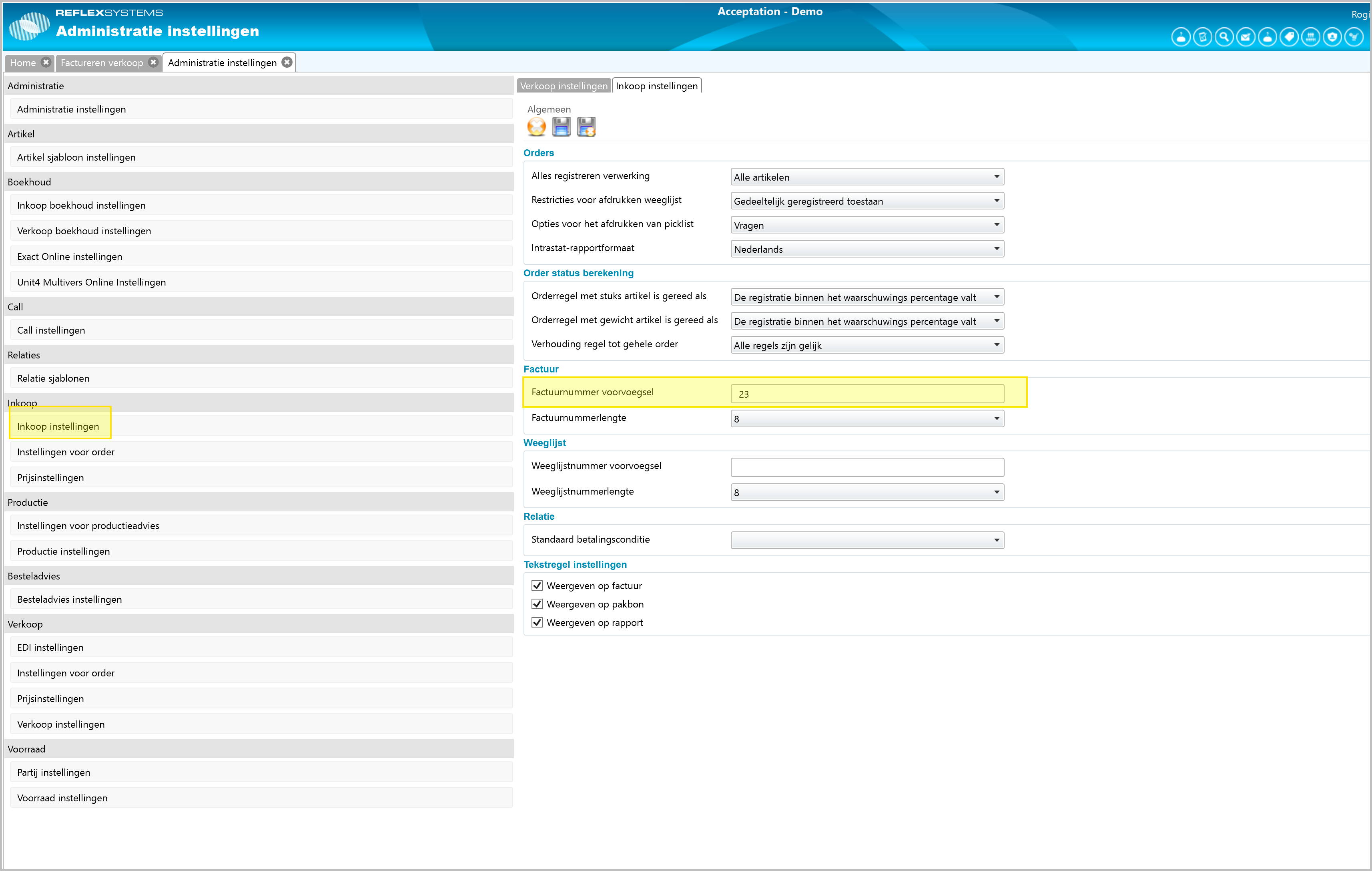
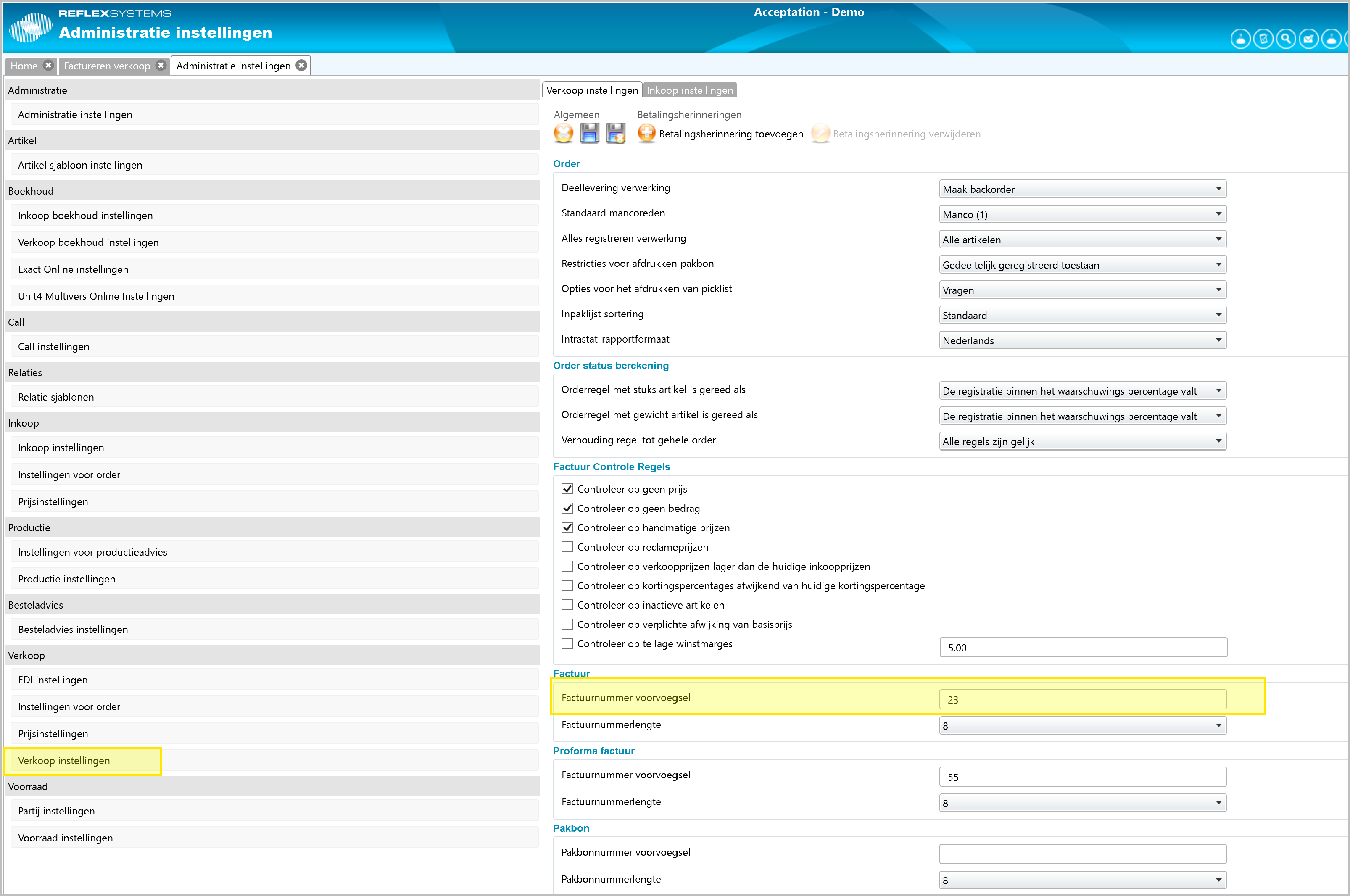
In ReflexBlue you can use leading numbers for your invoice numbers. If you use leading numbers and you want to keep them the same as the new year, you must adjust these numbers.
If you use leading numbers and have an invoice number length of six digits, the number of possible invoice numbers per leading number is limited. A leading number of two digits ensures that your invoice counter can get a maximum value of 9999. It is therefore advisable to reset your invoice counter to zero every year if you change the leading number.
Purchasing Settings
Sales Settings
Invoice Number Counters
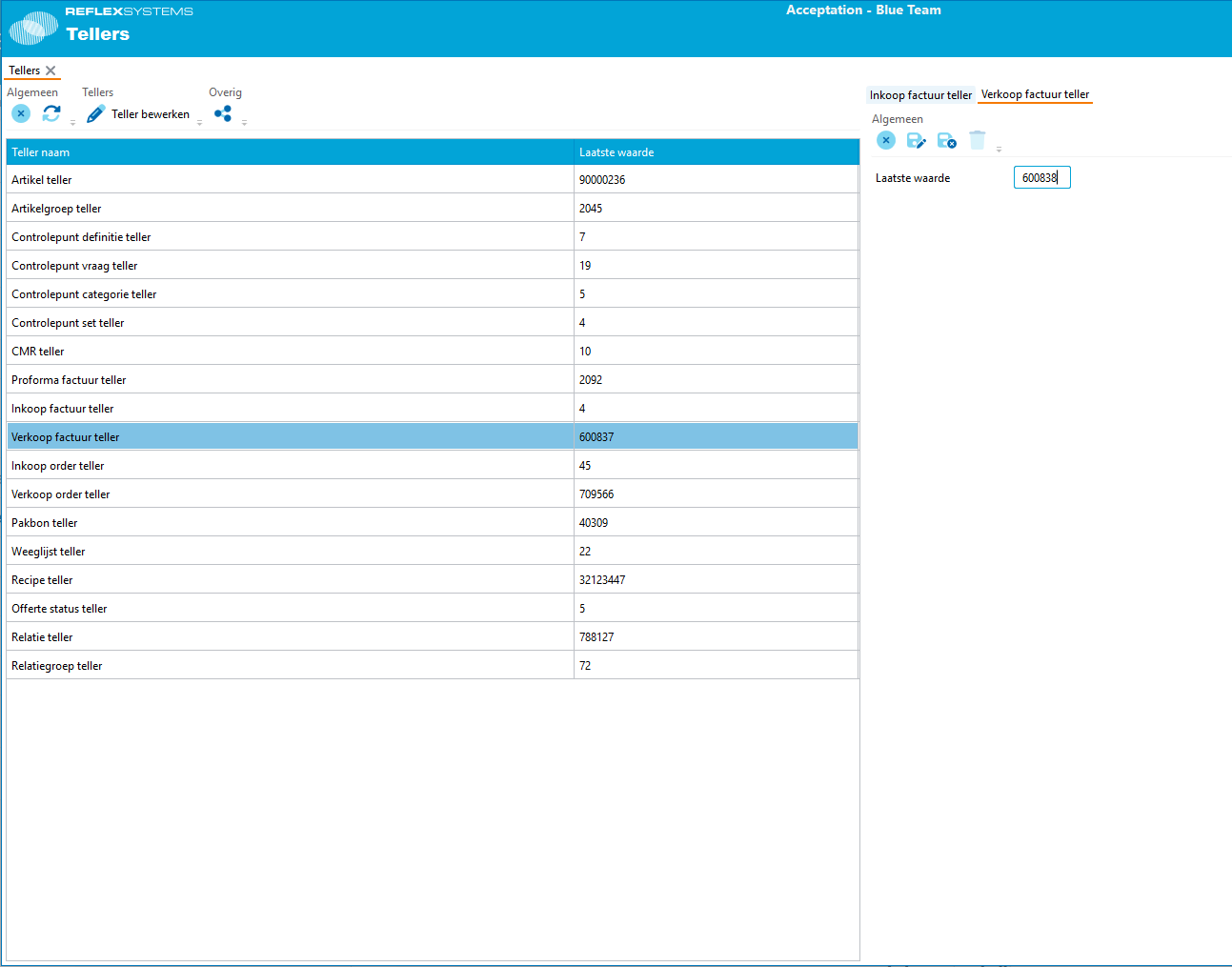
After you have the leading number adjusted you can adjust the Last value field to 0. You can do this for your purchase invoice numbers and for your sales invoice numbers.
Adjust the settings in your accounting package
If your accounting package requires this, then you only adjust the financial year in your accounting package after you have exported the invoices from the previous year.
Create invoices for the new year
You are now completely ready to create new invoices for a year.
Happy New Year and Happy Invoicing!