
Installing the ReflexBlue Printer Service
This guide helps you install the ReflexBlue Printer Service. Follow the steps in this guide to correctly install the service and make optimal use of the printing functionalities that ReflexBlue offers.
Before proceeding with the installation, please ensure that your PC meets the system requirements for installing the ReflexBlue Printer Service.
Installing the ReflexBlue Printer Service
Follow the steps below to install the ReflexBlue Printer Service:
-
The installation file for the ReflexBlue Printer Service is available via the management website of your ReflexBlue Application Server. Follow the instructions in Download applications from the ReflexBlue Application Server to download the installation file.
-
Choose a Windows user account on the PC that will be used by the Printer Service. There are two options:
-
This can be an existing Windows user account, such as your own account, if it concerns a personal PC or laptop.
Important for accounts without a password:
Windows requires that user accounts used by services must have a password. If your account does not have a password, you will need to set one.You can still configure your PC to log in automatically without a password at startup by following Microsoft’s instructions at Turn on automatic logon in Windows.
-
Or, create a new Windows user account on the PC, for example with the name
Printerservice.Important notes:
- The user account must not be a “Local Service” or “Network Service” account.
- Store the password for the account securely and carefully, because:
- You will need the account to log in yourself if you make changes to the printer driver(s).
- You will need the account if ReflexSystems support needs to provide assistance.
- Make sure the password does not expire.
-
-
Log in to Windows with the user account from the previous step.
-
Go to the location on the PC where you downloaded the installation file and run it.
-
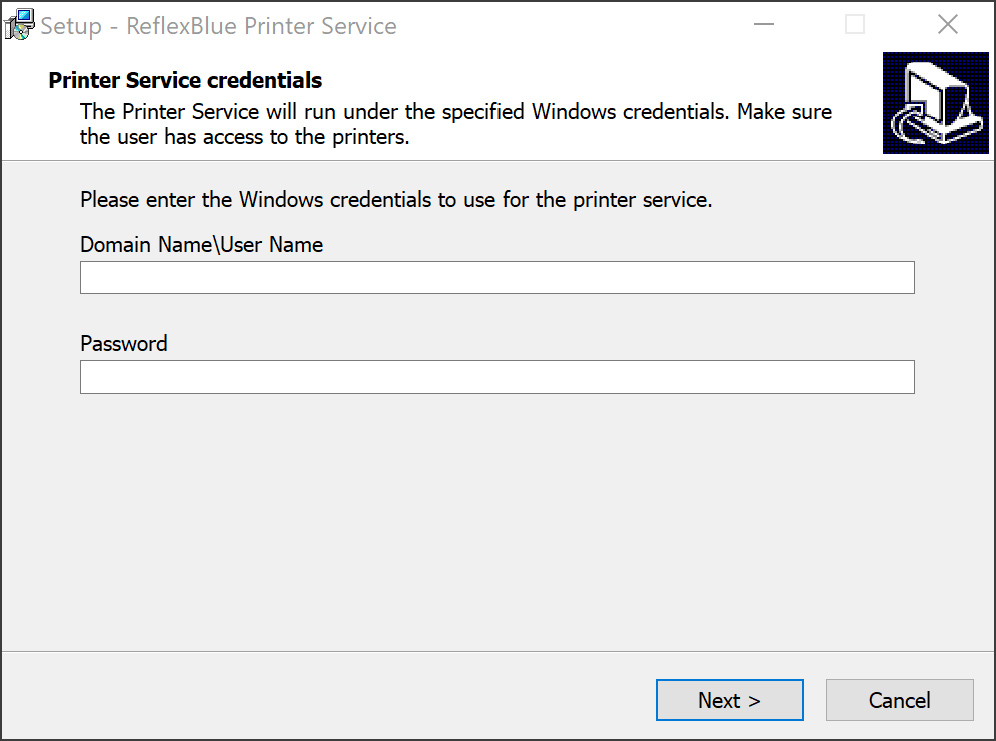
During installation, enter the Windows user account and password you created in the previous step. Then select Next to complete the installation process.
-
After installation, a shortcut will appear on the desktop called ReflexBlue Printer Service.
-
Double-click the ReflexBlue Printer Service shortcut on the desktop to open the Printer Service user interface in your web browser.
The first time you open the Printer Service user interface after installation, you will land on the Settings screen. Once configured, you will land on the Print Tasks screen when opening it.
-
You will now need to enter the configuration details to link the Printer Service to your ReflexBlue Application Server. For this, follow the instructions for configuring the ReflexBlue Printer Service.