
The Nutri-Score report component in ReflexBlue
This guide covers the Nutri-Score Report Component, designed to integrate the Nutri-Score food choice logo into reports and make it suitable for printing.
For more information about Nutri-Score, check Nutri-Score in ReflexBlue.
Adding the Nutri-Score food choice logo
Follow these steps to add the Nutri-Score food choice logo to a report:
- Open the report where you want to add the Nutri-Score food choice logo in the ReflexBlue Report Designer.
- Go to the Insert tab on the toolbar.
- In the Components section, select the Nutri-Score option.
- Click in the report layout where you want to place the Nutri-Score food choice logo. The logo is added with the default settings.
- If necessary, adjust the display of the logo by changing the properties:
- First, select the logo in the report layout.
- Then select the Properties tab.
- Change the logo’s properties in the Nutriscore section.
Properties of the Nutri-Score component
When adding the Nutri-Score component to a report in the Report Designer of ReflexBlue, a section named Nutriscore appears in the Properties tab. This section contains four configurable properties:
-
NutriScore: Defines the Nutri-Score value via an expression.
Valid values:A,B,C,D,Eor a report expression such as{FoodInformation.NutriScore}. -
Logo: Offers three variants for the logo, namely
BlackAndWhite,Grayscale, andColor.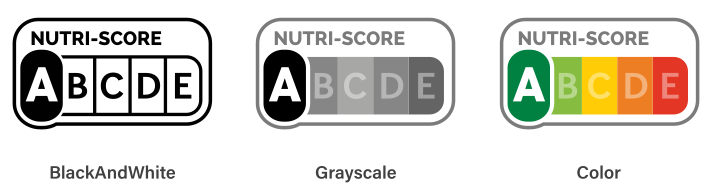
-
Orientation: Determines the orientation of the image, namely
HorizontalandVertical.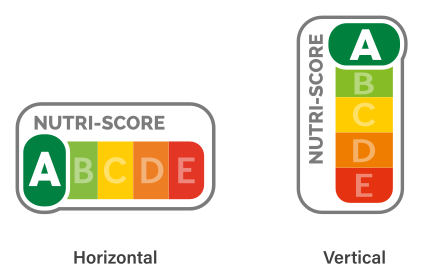
-
ShowOutline: Indicates whether the image should have an outline.
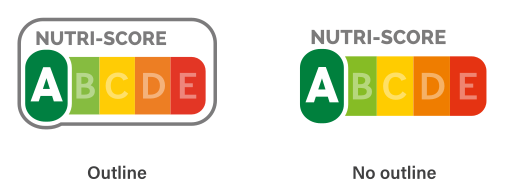
These properties can be used in any combination depending on the design and purpose of the report.