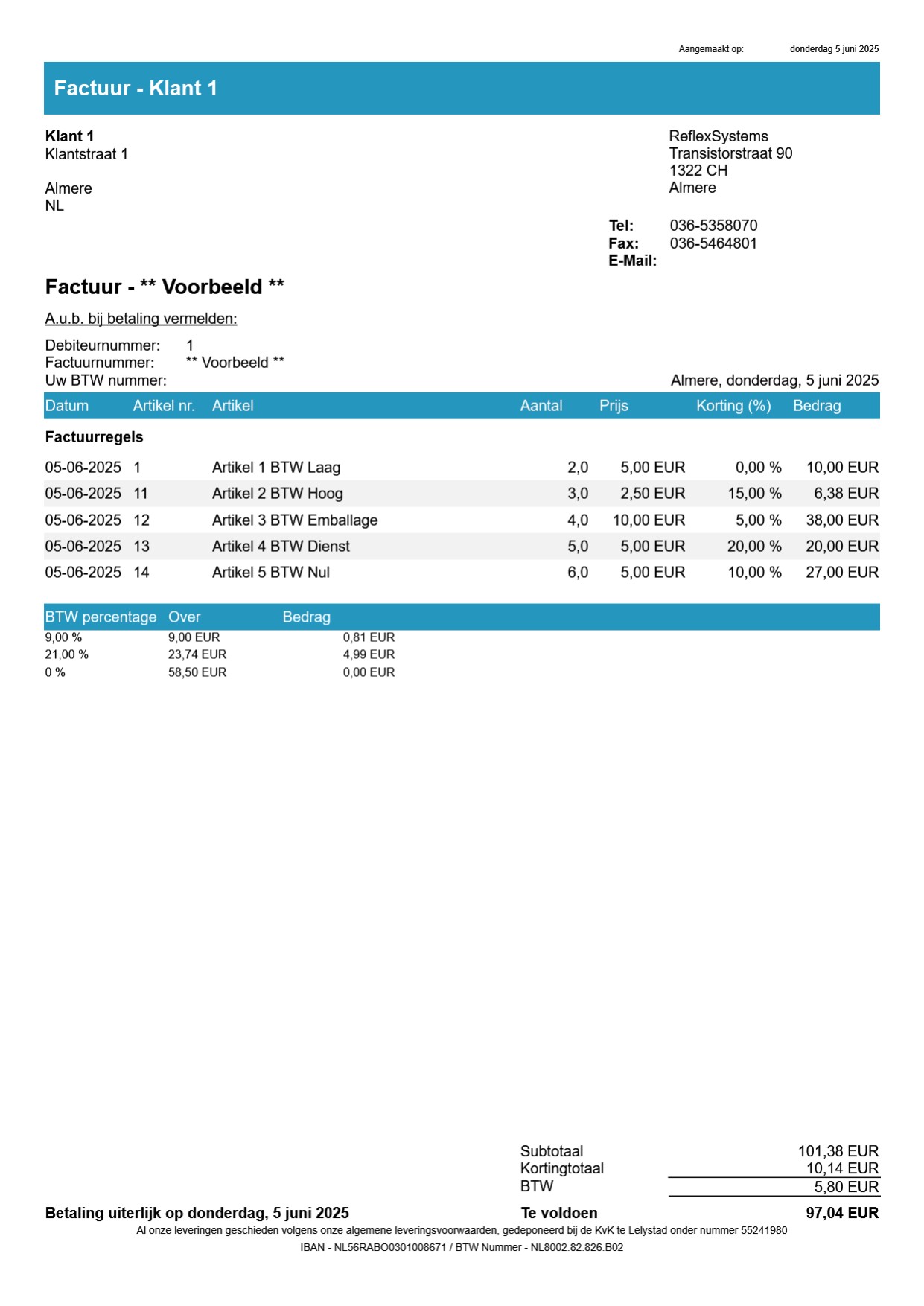
The sales invoice report in ReflexBlue
Editing the sales invoice report
To edit the sales invoice report, select the Reports (sales) option under Sales order in the menu of the ReflexBlue Desktop Client. Then choose Verkoopfactuur from the list of reports. For more information, see Editing reports in ReflexBlue.
Sales invoice fields
The sales invoice report consists of a layout and a dataset. In the Report Designer, you can find the dataset in the Dictionary under Business Objects.
The fields under Business Objects are usually easy to understand based on the field name. In the case of a sales invoice, this is not so straightforward for some fields. Therefore, we provide a reference with explanations about the important fields and their data.
Invoice summary
A typical invoice summary displays the data in the fields as follows:
- A list (node)
Subtotalswith the VAT base, VAT rate, and VAT amount. (You can see this in the invoice example below). - The subtotal excluding packaging and discount:
TotalAmountExcludingInvoiceDiscountAndPackingfield (optional). - The subtotal including packaging and excluding discount:
TotalAmountExcludingInvoiceDiscountfield (optional). - The subtotal including packaging and discount:
TotalInvoiceAmountfield. - The VAT amount:
TotalVatAmountfield. - The invoice total:
TotalInvoiceAmountfield.
Sales invoice example
Below is an example entry of an invoice in the ReflexBlue Desktop Client. All VAT rates are included here.
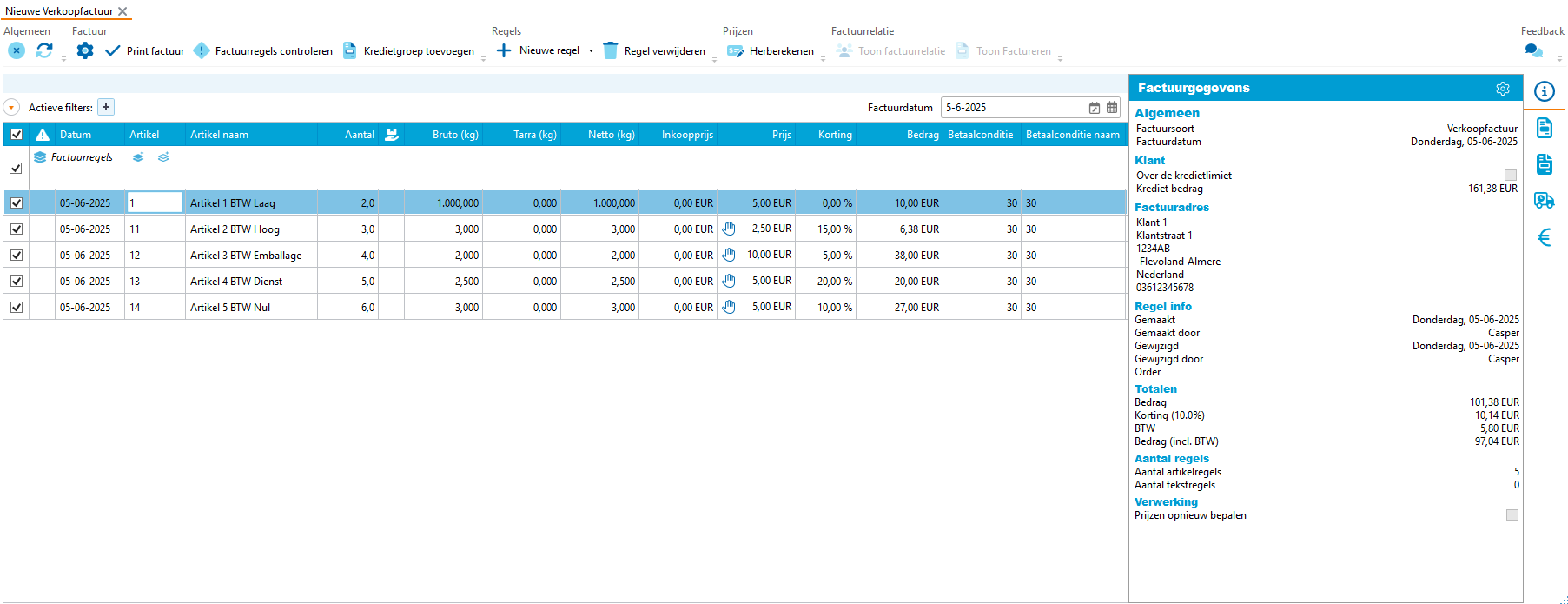
Now let’s look at the report of this invoice.
Sales invoice report example
In the example below of the sales invoice report, you can clearly see how the different VAT rates are split.